How to make Le VPN run on startup and automatically connect

If you wish to have your computer to launch Le VPN app on start-up and connect automatically to our VPN service, please follow the steps below:

1) Launch Le VPN app,  and click on "..." icon at the top-right followed by "Options".
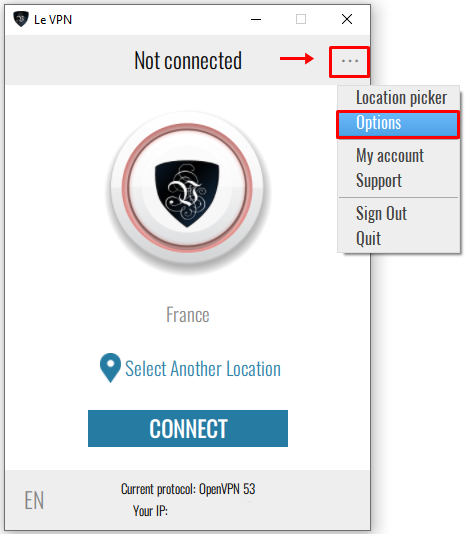
Le VPN options

2) At the "General" tab, check on "Launch Le VPN on startup" and "Connect automatically on startup".
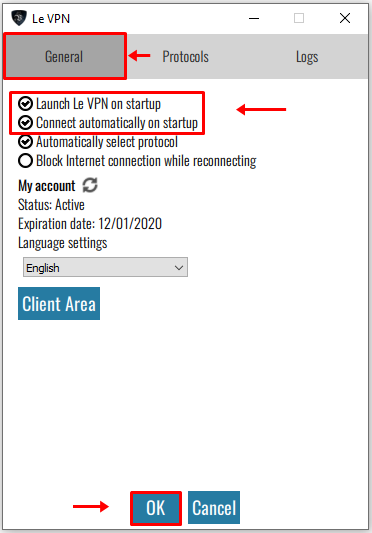
3) Next, click on "OK" at the bottom of our VPN app.

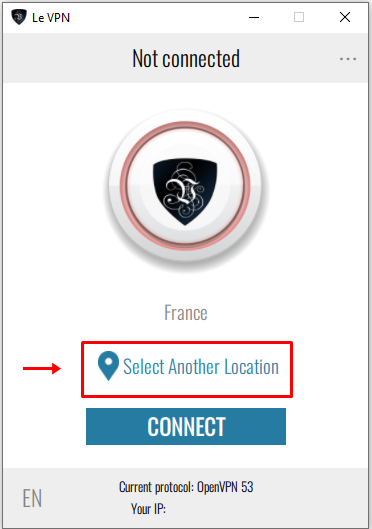
4) You will now be at the main screen. Please click on "Select Another Location".
5) Choose the country you wish to connect to followed by "Connect" button at the bottom of our app.
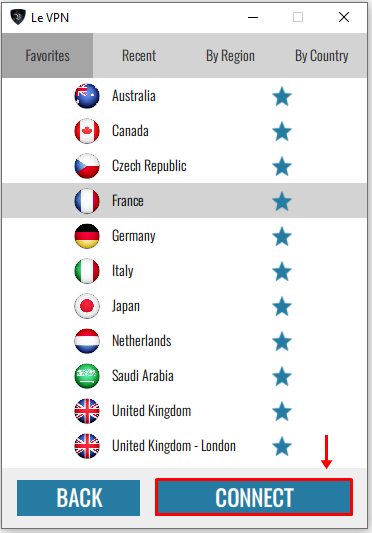
That’s it! The Le VPN app will now start-up and connect automatically.

If you need any further assistance, please contact us via Live Chat or submit a ticket to our support team.

  • 46 Users Found This Useful
Was this answer helpful?

Related Articles

How to uninstall Le VPN

To uninstall Le VPN application on macOS go to your "Applications" folder, select "Le VPN.app"...

Which ports does Le VPN use?

Le VPN may establish VPN connections on the following ports: PPTP: Port 1723 TCP L2TP over...

Where to find connections details & logs

If you’re having problems connecting to our VPN service, please follow steps below to send us the...

Connection speed decreases while using Le VPN

Connection speed depends on your geographical location and internet provider. Please note that...

You haven't received the welcome email with your Le VPN credentials

Please check your spam folder. If you still can't find the email, you can submit a support ticket...